V-Sync, Adaptive Sync and Screen Tearing Explained
Why screen tearing happens, what V-Sync, double and triple buffering really do, and how VRR, G-Sync, FreeSync and frame caps fit together.
Few graphics settings cause as much confusion as V-Sync. Turn it off and you may see horizontal tears slicing across the image. Turn it on and the game may feel sluggish or stutter whenever the frame rate dips. Add variable refresh rate, frame caps, triple buffering and vendor options like Fast Sync and Enhanced Sync, and it becomes hard to know what combination to choose. This guide explains the underlying problem, what each option actually does, and how they fit together.
Two clocks that don’t agree
A game and a display run on different schedules.
- A traditional display refreshes at a fixed rate, such as 60, 120 or 144 times per second. On each refresh it reads the current image from the GPU and draws it, scanning from the top of the screen to the bottom over the course of the refresh interval.
- The game produces frames whenever they are ready. Some frames take longer than others depending on what is on screen, so the frame rate fluctuates constantly.
The GPU keeps finished frames in memory buffers. The display reads from the front buffer, while the GPU draws the next frame into a back buffer. When the new frame is done, the buffers are swapped, which is called a flip or present. The question is when that swap is allowed to happen. Every setting in this article is a different answer.
Why screen tearing happens
If the swap happens immediately, whenever a frame finishes, it will often occur while the display is partway through scanning out the previous image. The top part of the screen shows the old frame, and the rest shows the new one. Because the camera has moved between the two frames, the boundary appears as a horizontal line where the image is misaligned. That is screen tearing.
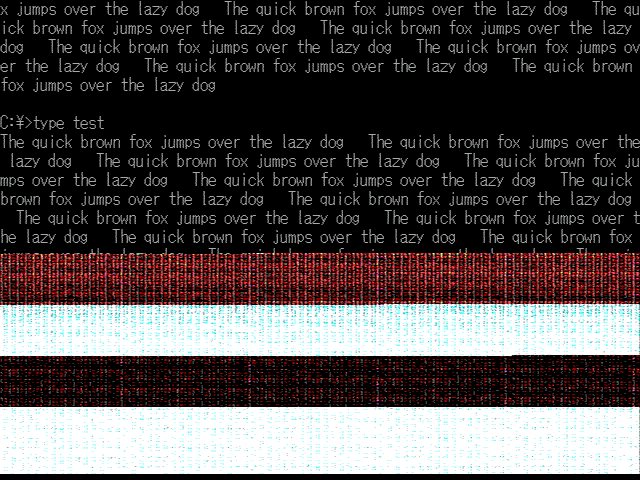
Tearing is most visible during fast horizontal camera pans, and it can occur at any frame rate, both below and above the refresh rate. When the frame rate is far higher than the refresh rate, you may see several tear lines in a single refresh.
The upside of swapping immediately is low latency: the newest frame starts appearing on screen as soon as it is ready, even if only partially.
What V-Sync does
Vertical synchronization (V-Sync) only allows the buffer swap during the vertical blanking interval, the brief moment between the end of one scan-out and the start of the next. Every refresh therefore shows exactly one complete frame, and tearing disappears.
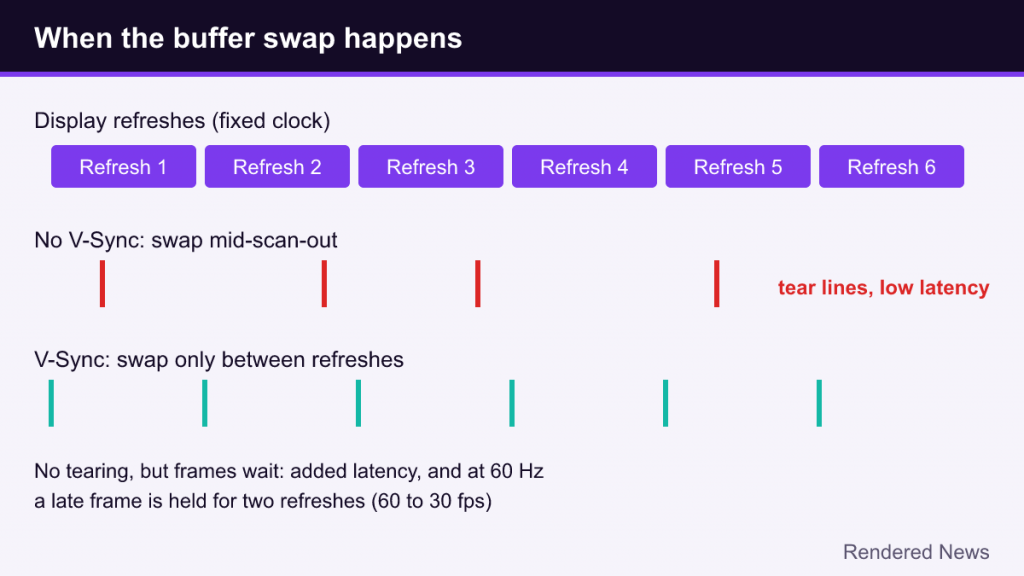
The cost comes in two forms.
Added latency
With V-Sync, a finished frame must wait for the next refresh before it is displayed. If the game renders faster than the display refreshes, frames pile up in a queue, each waiting its turn. The result is that what you see on screen lags further behind your input. In fast games this can feel like the controls are “floaty” or delayed.
Stutter below the refresh rate
With classic double buffering (one front buffer, one back buffer), if a frame misses a refresh deadline even slightly, the display shows the previous frame again and the new one waits for the following refresh. On a 60 Hz display, a frame that takes slightly longer than one refresh interval is effectively held for two, so the frame rate can snap from 60 to 30 and back. That uneven presentation is perceived as stutter or judder.
Double and triple buffering
Buffering strategy changes how V-Sync behaves when frames are late.
- Double buffering: with only one back buffer, the GPU cannot start the next frame until the swap happens, so it may sit idle waiting for the refresh. Missed deadlines cause the large drops described above.
- Triple buffering: adds a second back buffer, so the GPU can keep rendering while a finished frame waits for the refresh. This smooths out the drops when the frame rate dips below the refresh rate.
The term “triple buffering” is used for two different behaviors, which causes a lot of confusion. In one, frames are queued in order and all are shown, which smooths frame rate but can add a frame of latency. In the other, the display always takes the newest completed frame and older ones are discarded, which reduces latency compared with a queue. Which one a game’s toggle means depends on the API and the implementation, and many modern games simply manage their buffer count automatically.
Fast Sync and Enhanced Sync
Both major GPU vendors offer a driver-level option aimed at the case where the game runs much faster than the refresh rate:
- NVIDIA Fast Sync
- AMD Enhanced Sync
Conceptually, they let the game render as fast as it can without waiting for V-Sync, but at each refresh they show only the most recently completed frame and drop the others. That prevents tearing without the queue that makes traditional V-Sync laggy. The trade-off is that frames are being thrown away and the frames that are shown may not be evenly spaced in time, so motion can look less smooth unless the frame rate is well above the refresh rate. They make most sense for lighter games that run far above the display’s refresh rate.
Variable refresh rate: letting the display wait
Variable refresh rate (VRR) flips the problem around. Instead of making the game wait for the display, the display waits for the game. Within a supported range, the display starts a new refresh as soon as a frame arrives. If a frame takes slightly longer, the display simply holds the previous image a little longer and refreshes when the new one is ready.
Within its range, VRR gives you no tearing, no V-Sync queue latency and no snapping between 60 and 30. Uneven frame times still exist, but each frame is shown for about as long as it took to render, which looks much smoother than fixed-refresh presentation.
The main VRR technologies are:
- NVIDIA G-Sync: the first commercial VRR implementation, which reached displays in 2014.
- VESA Adaptive-Sync: an open standard added to DisplayPort 1.2a in 2014.
- AMD FreeSync: AMD’s VRR certification and implementation built on Adaptive-Sync over DisplayPort, and also supported over HDMI.
- HDMI 2.1 VRR: the HDMI Forum’s VRR feature, widely used by TVs and consoles.
NVIDIA GPUs can also drive many Adaptive-Sync displays under the “G-Sync Compatible” label. For the purpose of settings, all of these work on the same principle.
What happens outside the VRR range
VRR only works between the display’s minimum and maximum refresh rates.
- Above the maximum: the frame rate exceeds what the display can refresh, so the system falls back to V-Sync behavior (with its latency) or to tearing, depending on whether V-Sync is enabled.
- Below the minimum: many displays and drivers use low framerate compensation (LFC), showing each frame two or more times to keep the refresh rate inside the supported range. Without it, stutter or tearing returns at low frame rates.
Frame caps and why they matter
A frame rate cap (frame limiter) stops the game from rendering faster than a chosen rate. Caps are useful for several reasons:
- Staying inside the VRR range: capping slightly below the display’s maximum refresh rate prevents the frame rate from hitting the ceiling where V-Sync latency or tearing kicks in.
- Consistent frame pacing: a stable, capped frame rate can feel smoother than one swinging widely.
- Lower power, heat and noise: the GPU is not working flat out to produce frames you will never see.
- Reducing latency in GPU-bound scenarios: when the GPU is fully loaded, the CPU can run ahead and build a queue of frames. A cap that keeps the GPU slightly below full load shrinks that queue.
Caps can be set in the game, in the GPU driver or in third-party tools. In-game limiters often have the lowest latency because they act early in the game’s frame loop. Latency-reduction features such as NVIDIA Reflex, AMD Anti-Lag and Intel XeLL tackle the same render queue problem more directly and, in supported games, can also apply automatic frame caps when VRR and V-Sync are active.
Frame generation adds one more wrinkle: if generated frames push the output above the display’s refresh rate, you leave the VRR range. Vendors handle this in different ways, including automatic caps and dynamic multipliers. Our frame generation explainer covers that interaction.
Common setting combinations
There is no single correct setup for every game and person, but these combinations are widely used as general guidance:
| Situation | Common approach | Trade-off |
|---|---|---|
| VRR display, most games | VRR on, V-Sync on (often set in the driver), frame cap a little below max refresh | Smooth, tear-free, low latency inside the range |
| VRR display, competitive priority | VRR on, low-latency mode on, cap below max refresh | Very responsive while avoiding tearing |
| Fixed refresh display, latency priority | V-Sync off, optionally a frame cap | Lowest latency, but tearing is visible |
| Fixed refresh display, smoothness priority | V-Sync on, cap at the refresh rate or a clean fraction of it | No tearing, smoother pacing, some added latency |
| Game runs far above refresh rate | Fast Sync or Enhanced Sync | No tearing, less lag than V-Sync, possible uneven pacing |
Why keep V-Sync on with VRR? Inside the VRR range, V-Sync does essentially nothing because the display is already following the game. It only acts at the edges, preventing tears when individual frames briefly exceed the maximum. Combined with a cap below the maximum, it rarely engages at all.
Common mistakes
- Enabling V-Sync in both the game and the driver. Duplicate limiters can interact in unexpected ways. Pick one place to control it.
- Capping exactly at the max refresh rate with VRR. Frame times fluctuate, so some frames will still exceed the limit. A small margin below helps.
- Assuming VRR is active. It often needs to be enabled on the display, in the operating system and in the GPU control panel. Many displays have an on-screen refresh counter to confirm it.
- Using several frame limiters at once. Stacking an in-game cap, a driver cap and an external tool can create uneven pacing.
- Judging by the frame counter alone. A high average frame rate with uneven delivery can feel worse than a slightly lower, consistent one.
V-Sync and its alternatives are about when frames appear, not how they are rendered. For an overview of the settings that change the rendering itself, see our guide to PC graphics settings.