PC Graphics Settings Explained: What Every Common Option Actually Does
A plain guide to a typical PC graphics menu: what resolution, textures, shadows, AO, reflections, upscalers, frame caps and other options really change.
Open the graphics menu of almost any modern PC game and you will find dozens of options, often with names that assume you already know what they mean. This guide walks through the settings you are most likely to see, roughly in the order many games list them, and explains in plain terms what each one changes on screen and what kind of work it adds for your system. It is a map rather than a deep dive; where a topic deserves more detail, we point to dedicated explainers.
One general principle helps with everything below: settings mostly load either the GPU (anything that scales with pixels or lighting complexity) or the CPU (anything that increases the number of objects, simulations or draw calls), and some mainly consume video memory. Knowing which is which explains why a setting matters a lot in one game and barely at all in another.
Display settings: the foundation
Display mode
Options are usually exclusive fullscreen, borderless windowed and windowed. Historically, exclusive fullscreen gave the game direct control of the display and could reduce latency. On modern versions of Windows, borderless windowed generally behaves very similarly for most games while making alt-tabbing easier, but behavior varies by game, so it is worth testing both if you notice issues with tearing or refresh rate.
Resolution
The output resolution should normally match your display’s native resolution. Running below native forces the monitor or GPU to stretch the image, which looks blurry. Resolution has one of the largest effects on GPU load, because pixel shading cost scales with pixel count.
Refresh rate
Sets how many times per second the display updates. Choose the highest your display supports; this setting does not by itself make the game render faster.
Render scale and upscaling
Render scale (also called resolution scale or 3D resolution) sets the internal resolution the 3D world is rendered at, separately from the output resolution. The user interface typically stays sharp at native resolution while the world is rendered smaller or larger. Values below 100% gain performance and lose sharpness; values above 100% act as supersampling for a cleaner image at a high cost.
Upscalers such as DLSS, FSR and XeSS are a smarter version of the same idea: they render at a lower internal resolution and reconstruct detail using motion data from previous frames. Their quality modes (Quality, Balanced, Performance and so on) are effectively preset render scales. If you want to understand the differences, start with our DLSS explainer.
Dynamic resolution, when offered, lowers the render scale automatically during demanding moments to hold a target frame rate.
Anti-aliasing and sharpening
Anti-aliasing smooths jagged edges and reduces shimmering. Common options include TAA (temporal, stable but sometimes soft), FXAA and SMAA (cheap post-processing filters), MSAA (sharp edges, mostly in older or forward-rendered games) and DLAA or native AA modes from upscalers. Our anti-aliasing explainer compares them in detail.
A sharpening slider often sits nearby. It increases local contrast to counteract the softness of temporal methods. A little helps; too much creates bright halos around edges and makes noise more visible.
Textures and filtering
Texture quality controls the resolution of the images wrapped onto surfaces. Higher settings mean crisper detail on walls, clothing and terrain. This setting mainly consumes video memory rather than raw GPU processing. When a game tries to use more texture memory than is available, the usual symptoms are stutter, textures that load in late or stay blurry, and sudden frame drops rather than a steady lower frame rate. Many games show an estimate of memory usage in the menu for this reason.
Texture filtering (often anisotropic filtering, with values like 2x to 16x) keeps textures sharp when viewed at steep angles, such as a road stretching into the distance. On modern GPUs the cost is typically small, so high values are a common default.
Texture streaming options, where present, control how aggressively the game loads higher-detail textures as you move. A larger streaming pool reduces visible pop-in at the cost of more memory.
Lighting and shadows
Shadow quality
Most games create shadows using shadow maps, which render the scene from the light’s point of view. The shadow quality setting usually changes the resolution of those maps (sharper, less jagged shadows), how far from the camera detailed shadows extend, how many lights cast shadows, and how soft the edges are. Shadows are frequently one of the more expensive settings, and the difference between the top two levels is often subtle.
Contact shadows
Small, short-range shadows that ground objects where they touch surfaces, filling gaps that regular shadow maps miss.
Ambient occlusion
Ambient occlusion (AO) darkens creases, corners and places where objects meet, simulating how ambient light is blocked in tight spaces. Screen-space variants such as SSAO, HBAO+ and GTAO are cheaper but only consider what is visible on screen, which can produce halos around characters. Ray-traced AO is more accurate and more expensive. Turning AO off entirely tends to make scenes look flat, with objects appearing to float.
Global illumination
Global illumination (GI) handles bounced light: sunlight hitting a floor and brightening the ceiling. Options range from baked lighting (fixed, cheap) to screen-space GI to fully dynamic ray-traced or software-traced GI. Where a game offers it, GI often has a larger impact on overall realism than any other lighting setting.
Reflections and ray tracing
Reflection quality can mean several different techniques: static reflection probes or cube maps (cheap, approximate), screen-space reflections (accurate for what is on screen, but disappear when the reflected object leaves the view), or ray-traced reflections (accurate including off-screen objects, but expensive).
Ray tracing settings are often grouped together: ray-traced reflections, shadows, ambient occlusion, global illumination, or a single “path tracing” toggle that recomputes almost all lighting by tracing rays. Each tier usually changes the number of rays per pixel, how far they travel, and the resolution of the effect. Because rays scatter across the whole scene rather than just what is on screen, these effects are among the most demanding options in any menu.
You may also see a denoiser option, such as DLSS Ray Reconstruction, which uses a neural network to clean the noisy output of ray tracing.
Geometry, detail and world settings
- Level of detail (LOD) / object detail: controls when objects switch to simpler models as they get further away. Higher settings delay the switch, reducing visible “pop” at the cost of more geometry.
- View or draw distance: how far away objects are drawn at all. Raising it can increase CPU load significantly in open-world games, because more objects must be processed and submitted.
- Foliage / vegetation density: how much grass and plant life is drawn. Dense foliage can be expensive both for the GPU and for shadows.
- Crowd or traffic density: the number of simulated people and vehicles. This is mostly a CPU setting.
- Tessellation / geometry detail: adds extra geometric detail to surfaces such as terrain or rocks.
- Physics and destruction: the complexity of debris, cloth and destruction. Usually CPU-bound.
Effects and post-processing
Effects quality generally covers particles, smoke, fire, explosions and sometimes volumetric fog. Volumetric lighting or fog creates visible light shafts and atmospheric haze and can be surprisingly expensive at high settings.
Post-processing options apply after the 3D scene is rendered and are largely a matter of taste:
- Motion blur: smears moving parts of the image to simulate a camera shutter. Some like it for smoothness at lower frame rates; many disable it.
- Depth of field: blurs objects outside a focus distance, often used in cutscenes.
- Bloom: makes bright light sources glow.
- Chromatic aberration: colored fringes near the edges of the screen, imitating a camera lens flaw.
- Film grain and vignette: cinematic noise and darkened screen corners.
- Lens flares: streaks and circles from bright lights.
These effects are rarely the biggest performance factors, but they strongly affect image clarity, which is why many players turn several off.
Frame rate, sync and latency options
- V-Sync: synchronizes frame delivery with the display’s refresh to prevent tearing, at the cost of added latency and possible stutter if the frame rate drops below the refresh rate.
- Frame rate limit / cap: sets a maximum frame rate. Useful for consistent pacing, lower power use and keeping within a variable refresh rate display’s range.
- Frame generation: inserts generated frames between rendered ones for smoother motion. It does not improve responsiveness and works best from a solid base frame rate; see our frame generation explainer.
- Low-latency modes: NVIDIA Reflex, AMD Anti-Lag and Intel XeLL reduce the delay between input and on-screen response, mainly by preventing frames from queuing up.
- Triple buffering: an extra frame buffer that can smooth V-Sync behavior, sometimes with added latency.
HDR and color settings
On HDR-capable displays, games may offer an HDR toggle with sliders for peak brightness, paper white (the brightness of the UI and ordinary white surfaces) and black level. Getting these right matters more than almost any other visual setting, because poor calibration can make an HDR image look washed out or crushed. Brightness and gamma sliders serve a similar role in SDR, usually with a calibration image to follow.
Presets and a sensible approach
Presets such as Low, Medium, High and Ultra bundle all of the above. Ultra settings often deliver small visual gains for a large cost, so a common approach is:
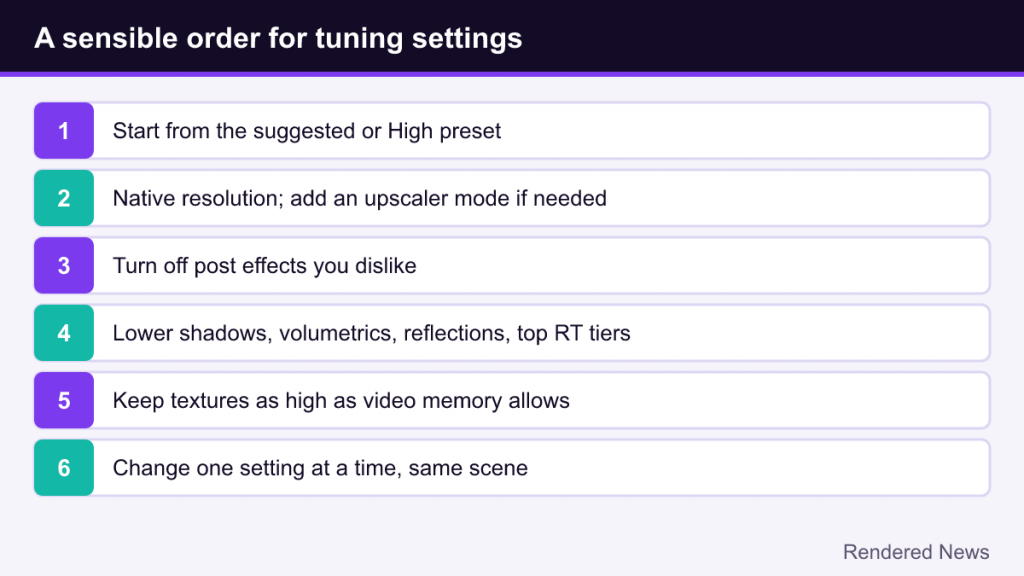
- Start from the preset the game suggests or the High preset.
- Set the resolution to native and choose an upscaler mode if you need more performance.
- Turn off post-processing effects you dislike, since they affect clarity more than performance.
- Lower the expensive, subtle settings first: shadows, volumetrics, reflections and the top tiers of ray tracing.
- Keep texture quality as high as your video memory allows, because it improves the image without much processing cost.
- Change one setting at a time and look at the same scene, so you can actually see what each one does.
Every game names and groups these options slightly differently, but the underlying techniques are shared across the industry. Once you know what a setting is actually doing, a crowded graphics menu becomes much easier to read.