HDR in Games Explained: Peak Brightness, Paper White and Tone Mapping
What HDR changes in games, how peak brightness, paper white and black level sliders work, what tone mapping does, and how to fix washed-out or crushed HDR.
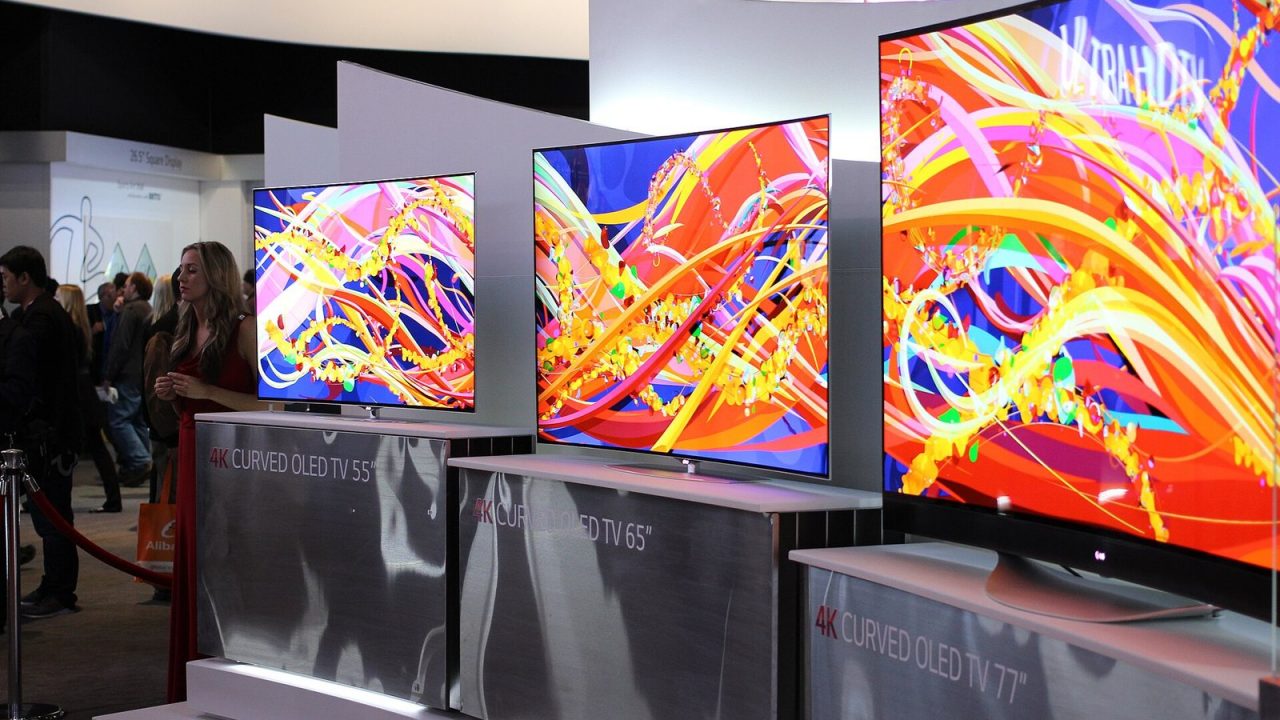
HDR can be the most striking visual upgrade a game offers, or the most disappointing one. Set up well, it delivers bright highlights that feel genuinely luminous, deep shadows with visible detail and richer color. Set up badly, it looks grey, washed out or harshly clipped. Most of the difference comes down to understanding a handful of settings: peak brightness, paper white, black level and the tone mapping that ties them together. This guide explains what each one does from the software side.
What HDR actually changes compared with SDR
Standard dynamic range (SDR) video and games were designed around old display limits. Content is mastered for a fairly modest brightness, a limited color range (the Rec. 709 / sRGB gamut) and usually 8 bits per color channel. Anything brighter than “white” simply cannot be represented: a sunlit sky and a white shirt end up at the same maximum value.
High dynamic range (HDR) expands the signal in three ways:
- Luminance range: HDR signals can describe much brighter highlights alongside very dark shadows, so the sun, a muzzle flash or a neon sign can be significantly brighter than a white wall in the same image.
- Wide color gamut: HDR content is carried in a larger color space (the Rec. 2020 container), allowing more saturated colors than sRGB, such as deep reds and vivid greens, where the display can reproduce them.
- Bit depth: HDR10 uses 10 bits per channel, giving many more steps between dark and bright and reducing visible banding in smooth gradients like skies.
The key mental shift is that SDR describes brightness relative to whatever the display’s maximum is, while HDR describes brightness in absolute terms.
PQ and HDR10: how brightness is encoded
Most HDR in games uses HDR10, which relies on a transfer function called PQ (Perceptual Quantizer), standardized as SMPTE ST 2084. A transfer function maps signal values to brightness. PQ is designed around human vision, spending more of its code values on dark tones where our eyes are sensitive to small changes and fewer on bright tones.
PQ is absolute: a given code value means a specific luminance, measured in nits (candela per square meter), up to a theoretical 10,000 nits. In practice, no consumer display reaches that ceiling, and displays vary enormously in how bright they can get and how much of the screen can be bright at once. That gap between what the signal can describe and what the display can show is the root of nearly every HDR setting.
HDR10 can include static metadata describing the content’s mastering brightness, but games generate images in real time rather than shipping a mastered film, so they mostly rely on the player to tell them the display’s capabilities. That is what the HDR sliders are for.
Peak brightness: telling the game your ceiling
The peak brightness (or maximum luminance) slider tells the game the brightest value your display can actually show. The game then shapes its highlights to fit under that ceiling.
- Set too high: the game sends highlights the display cannot reproduce. The display clips them or applies its own tone mapping, and detail in bright areas such as clouds and lamps disappears into flat white.
- Set too low: highlights are compressed more than necessary, and the image loses the punch HDR is supposed to deliver.
Many games present a calibration pattern, typically a logo or symbol that should just barely disappear into its background, to help you find the right value. The correct value depends on your display and its picture mode, not on a universal number.
Paper white: the brightness of everyday things
Paper white (sometimes labeled “UI brightness,” “mid-tone brightness” or “HDR reference white”) sets how bright ordinary white surfaces and the interface should appear: a sheet of paper, a white wall in shade, menu text. It is effectively the brightness of the “normal” part of the image, with highlights rising above it.
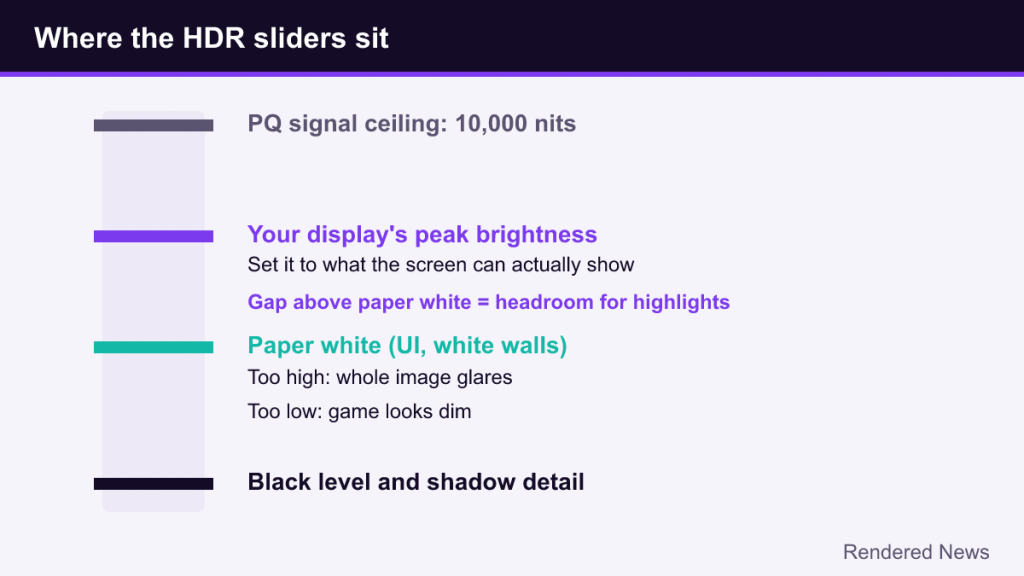
This setting is often the most misunderstood. In SDR, white is also the maximum, so there is nothing above it. In HDR, paper white should sit well below peak brightness so there is headroom for highlights. If paper white is set too high, the whole image becomes uncomfortably bright and highlights have little room to stand out. If it is set too low, the game looks dim. There is no single correct value; the comfortable level depends on the room you are playing in, being lower in a dark room and higher in a bright one.
Some games have a separate slider for UI brightness so menus and subtitles do not glare against a dark scene.
Black level and shadow detail
The black level or minimum luminance slider controls the darkest values the game outputs. The goal is for pure black to be black while near-black detail stays just visible. A calibration image typically shows a symbol that should barely be distinguishable from the background.
- Raised blacks: if the game lifts its darkest values, dark scenes look grey and hazy. This is one of the most common HDR complaints. It can come from the game’s own tone mapping, an incorrect slider value, or a mismatch between the game and the display’s settings.
- Crushed blacks: if the black level is set too low, shadow detail merges into pure black, hiding information in dark areas.
Tone mapping: fitting a big world into a small range
Inside the engine, modern games render lighting in linear high dynamic range regardless of whether you play in SDR or HDR. A sunlit sky might be thousands of times brighter than a shaded corner. No display can show that full range, so the final step, tone mapping, compresses the scene’s luminance into what the output can display.
In SDR, tone mapping squeezes everything into the narrow 0-to-white range, rolling off highlights so they do not clip harshly. In HDR, the tone mapper has a much larger range to work with, guided by your peak brightness and paper white settings. A good HDR tone mapper keeps mid-tones similar to the SDR look while letting highlights extend into the extra headroom.
Tone mapping can happen in two places:
- In the game: the engine maps its image to your stated peak brightness.
- In the display: the TV or monitor applies its own tone mapping when it receives values above its capabilities.
Doing it twice can compress highlights unnecessarily. This is the idea behind the HGIG (HDR Gaming Interest Group) recommendations, which many TVs offer as a mode: the display reports its capabilities and avoids applying extra tone mapping, leaving the job to the game. The Windows HDR Calibration app’s test patterns are based on HGIG guidance as well.
Windows HDR settings, calibration and Auto HDR
On PC, the operating system plays a role too. In Windows, HDR is enabled under Settings > System > Display. With HDR on, the desktop and SDR applications are mapped into the HDR signal, and a slider controls how bright SDR content appears.
Microsoft’s Windows HDR Calibration app, available for Windows 11, walks you through three test patterns that identify the darkest visible detail, the brightest visible detail and the display’s maximum brightness, plus a color saturation slider. It saves the results as a color profile. Games that read the system’s HDR characteristics can use that information, and Microsoft recommends rerunning the app when your display setup changes.
Auto HDR is a separate Windows feature that converts SDR DirectX 11 and DirectX 12 games to HDR by expanding their brightness and color range. It first appeared in a Windows Insider preview for PC in March 2021. Because it is inferring highlights the game never encoded, results vary by title: some games look convincingly brighter, while others gain bright UI elements or exaggerated highlights. When a game has native HDR, that is generally preferable to Auto HDR, since the engine knows its actual scene luminance.
Common HDR problems and fixes
- Everything looks washed out on the desktop. SDR content mapped into HDR can look dull if the SDR brightness slider is low or the display is in a non-HDR picture mode. Adjust the SDR content brightness, or switch HDR on only when gaming.
- Dark scenes look grey. Check the in-game black level, then confirm the display is in its intended HDR mode. Some games are known for raised blacks in their tone mapping, which settings can only partially fix.
- Highlights are flat white blobs. Peak brightness is probably set above what the display can show, or both the game and display are tone mapping. Lower peak brightness or try the display’s HGIG mode.
- The menus are blinding. Lower paper white or the separate UI brightness setting.
- Colors look oversaturated. Some displays apply vivid color modes on top of the wider gamut. A more accurate picture mode usually helps, as does a moderate saturation value in the Windows calibration app.
- Banding in skies or fog. Confirm the output is running at 10-bit or higher where your setup supports it, since some connections and settings fall back to 8-bit.
- HDR toggle is greyed out. Many games require Windows HDR to be enabled first, and some require exclusive fullscreen or a specific display mode.
A simple setup order
- Put the display in its HDR or game picture mode and, if available, enable HGIG.
- Enable HDR in Windows and run the Windows HDR Calibration app.
- In the game, set peak brightness with its calibration image so highlight detail just survives.
- Set black level so near-black detail is barely visible.
- Adjust paper white until normal scenes feel comfortable for your room lighting.
- Check a bright outdoor scene and a dark interior, then fine-tune.
HDR is also only one part of a game’s overall image. If you are working through the rest of the menu, our guide to PC graphics settings covers the other common options and how they interact.