Render Resolution vs Output Resolution: What Render Scale Really Means
Render vs output resolution explained: render scale sliders, upscaler mode percentages, per-axis vs total pixels, and why pixel count drives cost.
Modern games rarely render at exactly the resolution you see. Your display might show a 4K image while the 3D world underneath was drawn at 1440p, 1080p or even lower and then reconstructed. Understanding the difference between render resolution and output resolution makes render scale sliders, upscaler quality modes and dynamic resolution settings far less mysterious. It also clears up one of the most common sources of confusion in graphics discussions: whether a percentage refers to each axis or to the total number of pixels.
Two resolutions, two jobs
Output resolution (sometimes called display or target resolution) is the size of the final image sent to your screen. For the sharpest result it should normally match your display’s native resolution, because a display showing a non-native signal has to stretch it, which softens everything including text.
Render resolution (also called internal resolution) is the size of the image the game actually renders the 3D scene at. It can be lower than, equal to, or higher than the output resolution. The game then scales the rendered image to the output size, either with a simple filter or with a sophisticated reconstruction technique.
Crucially, most games render the user interface separately, at the output resolution. That is why menus, subtitles and HUD elements stay crisp even when you lower the render scale. Setting the whole display resolution lower, by contrast, makes the interface blurry as well. That distinction is the main reason render scale sliders exist: they let you trade 3D image sharpness for performance without degrading the parts of the screen you read.
Why pixel count drives GPU cost
A large share of the work a GPU does each frame is per-pixel: shading surfaces, computing lighting, sampling textures, running post-processing effects, and tracing rays for ray-traced effects. If you double the number of pixels, much of that work roughly doubles too.
Not everything scales this way. Processing geometry, simulating physics, running AI and preparing draw calls depend on the scene, not on the resolution. That is why lowering render resolution produces a large speed-up when the GPU is the limiting factor, and very little when the CPU is the bottleneck. If a game’s frame rate barely changes when you drop the render scale, the GPU probably was not the limiting factor in that scene.
Here is how common resolutions compare in total pixels:
| Resolution | Dimensions | Total pixels | Share of 4K |
|---|---|---|---|
| 4K UHD | 3840 × 2160 | 8,294,400 | 100% |
| 1440p (QHD) | 2560 × 1440 | 3,686,400 | about 44% |
| 1080p (Full HD) | 1920 × 1080 | 2,073,600 | 25% |
| 720p (HD) | 1280 × 720 | 921,600 | about 11% |
Note that 1080p is exactly half of 4K on each axis but only a quarter of its pixels. That simple fact is the root of most render scale confusion.
The per-axis vs total-pixel confusion
When a game shows “Render scale: 50%,” it can mean one of two things:
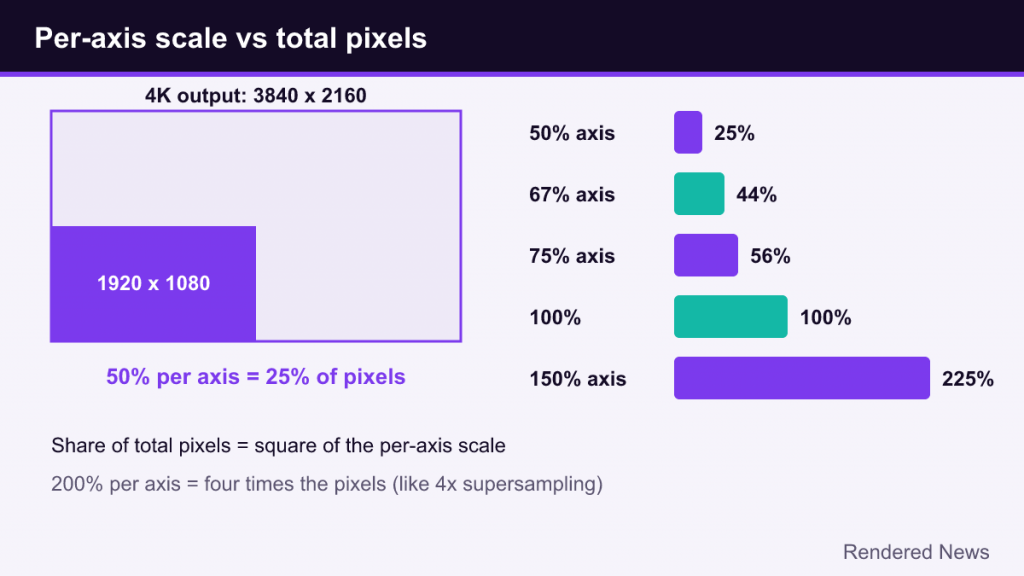
- Per-axis scaling: width and height are each multiplied by 0.5. At 4K output, that renders at 1920 × 1080, which is 25% of the pixels.
- Total-pixel scaling: the total pixel count is halved. At 4K output, that renders roughly 4.1 million pixels, about 2715 × 1527.
Most games and engines use per-axis percentages, and upscaler quality modes are defined per axis. Unreal Engine’s screen percentage setting, for instance, scales each axis. But not every game labels its slider clearly, and some use total-pixel values, so the same “50%” can represent very different workloads.
A helpful rule: to convert a per-axis percentage to a share of total pixels, square it. 50% per axis is 0.5 × 0.5 = 25% of the pixels. 67% per axis is about 44%. 75% per axis is about 56%. That is why seemingly modest render scale reductions can produce large performance gains.
The same logic applies above 100%. A render scale of 200% per axis means four times as many pixels, which is equivalent to 4x supersampling and roughly four times the per-pixel workload. A seemingly harmless 150% is already 2.25 times the pixels.
Upscaler quality modes as render scales
Upscaler quality modes are effectively presets for render resolution. The standard modes for NVIDIA DLSS and AMD FSR’s temporal upscaling use these scale factors:
| Mode | Scale factor | Per axis | Share of pixels | Render resolution at 4K output |
|---|---|---|---|---|
| Native AA / DLAA | 1.0× | 100% | 100% | 3840 × 2160 |
| Quality | 1.5× | about 67% | about 44% | 2560 × 1440 |
| Balanced | about 1.7× | about 58–59% | about 34% | about 2230 × 1250 |
| Performance | 2.0× | 50% | 25% | 1920 × 1080 |
| Ultra Performance | 3.0× | about 33% | about 11% | 1280 × 720 |
The “scale factor” is the ratio of output to render resolution on each axis. A factor of 2.0x means the output is twice as wide and twice as tall as the render.
Mode names are not universal, though. Intel changed XeSS’s presets in version 1.3: Quality now uses a 1.7x factor and Balanced a 2.0x factor, which matches what DLSS and FSR call Balanced and Performance, and new Ultra Quality Plus (1.3x) and Ultra Quality (1.5x) modes sit above them. So “Quality” in one upscaler can render fewer pixels than “Quality” in another. When comparing upscalers, compare the render resolution, not the label. Our explainers on DLSS and FSR cover how each reconstructs detail.
Native vs upscaled vs supersampled
With those definitions, three common setups can be described precisely:
- Native: render resolution equals output resolution. Anti-aliasing (often TAA, DLAA or a native AA mode) smooths edges, but no upscaling happens.
- Upscaled: render resolution is lower than output. A simple spatial filter can enlarge the image, but temporal upscalers do much better by accumulating detail over several frames using motion vectors and sub-pixel jitter. That is how an upscaled image can sometimes resolve fine detail comparable to native.
- Supersampled: render resolution is higher than output, and the image is downscaled. Each output pixel averages several rendered samples, which produces a very clean, stable image at a large cost. Driver features like NVIDIA DSR/DLDSR and AMD Virtual Super Resolution work by pretending the display is higher resolution so the game renders more pixels.
It is even possible to combine them: render at a higher virtual resolution and use an upscaler in a quality mode, so the internal render ends up near native while the reconstruction targets a larger image before downscaling. Some players use this to get a sharper result than native TAA, at a performance cost.
Why the same mode looks different at different resolutions
Upscalers work from the information in the rendered image. The higher the render resolution, the more information they have. Performance mode at 4K output starts from 1080p, a very respectable base. Performance mode at 1080p output starts from just 960 × 540, which leaves far less detail to reconstruct.
This is why general advice often suggests more aggressive modes at high output resolutions and more conservative modes at lower ones. It is also why a “4K Performance” image can look better than a “1440p Quality” image, despite rendering at a lower percentage: 1920 × 1080 internal pixels versus roughly 1707 × 960.
Dynamic resolution
Dynamic resolution scaling adjusts the render resolution from frame to frame to hold a target frame rate. When a scene becomes demanding, such as a big explosion or a dense city view, the render resolution drops; when it is lighter, it rises again. Combined with a temporal upscaler, these changes can be hard to notice because the output resolution stays constant.
Consoles have used dynamic resolution extensively for years, and many PC games now offer it with a target frame rate setting. Some upscalers also offer automatic modes that pick a scale based on output resolution.
Quick questions about render scale
Does render scale affect the HUD?
Usually not. Most games composite the interface at output resolution after the 3D scene has been scaled. A few older or simpler games scale everything together, in which case text softens along with the world.
Is 100% render scale with TAA the same as native?
Yes, in the sense that the render and output resolutions match. The anti-aliasing method still shapes how sharp it looks; TAA can appear softer than a native mode from an ML upscaler such as DLAA.
Why does the game show two resolutions in the menu?
Games that list both an output and an internal resolution are telling you exactly what this article describes. The internal figure is the one that matters for GPU workload; the output figure determines how the final image fits your display.
Does lowering render scale reduce video memory use?
Somewhat. Render targets such as the G-buffer, depth buffer and post-processing buffers shrink with resolution, but textures and geometry do not, so the saving is real but usually smaller than the performance gain.
Can a lower render scale ever look better?
Indirectly. If the performance it frees up lets you enable a lighting feature such as ray-traced global illumination, the overall image can look more convincing even though each frame starts with fewer pixels.
Common mistakes
- Lowering display resolution instead of render scale. This blurs the UI and makes the display do the scaling, which usually looks worse than an in-game upscaler.
- Stacking scalers. Setting a render scale below 100% and then enabling an upscaler mode can compound reductions, depending on how the game combines them. Check the resulting internal resolution if the game displays it.
- Comparing modes by name across upscalers. As noted above, the same label can mean different render resolutions.
- Assuming render scale always helps. If the CPU is limiting performance, lowering render resolution may barely change the frame rate.
- Over-sharpening low render scales. Sharpening can make a low-resolution image look crisper at a glance, but it also amplifies noise and shimmering.
For a broader tour of the menu where these options live, see our guide to PC graphics settings. Once you think in terms of render resolution, many of those options start to make sense as different ways of spending, or saving, a fixed pixel budget.