Motion Blur, Depth of Field, Film Grain and Other Post-Processing Effects Explained
What motion blur, depth of field, chromatic aberration, film grain, vignette, bloom, lens flares and sharpening do, why games use them and why players turn them off.

Open almost any modern game’s graphics menu and you will find a cluster of toggles that sound like they belong on a camera: motion blur, depth of field, chromatic aberration, film grain, vignette, lens flares. These are post-processing effects, and they are among the most divisive settings in gaming. Developers add them deliberately, often to sell a cinematic look, and a large share of players switch them off the moment a game starts. This guide explains what each effect actually does, how it is produced, and why opinions split so sharply.
What Post-Processing Means
Post-processing is any image effect applied after the main scene has been rendered. By the time post-processing runs, the renderer already has a finished frame along with useful extra data: a depth buffer recording how far each pixel is from the camera, and often a velocity buffer recording how each pixel moved since the last frame. Post-processing effects read those images and produce a modified final image, usually with full-screen shader passes.
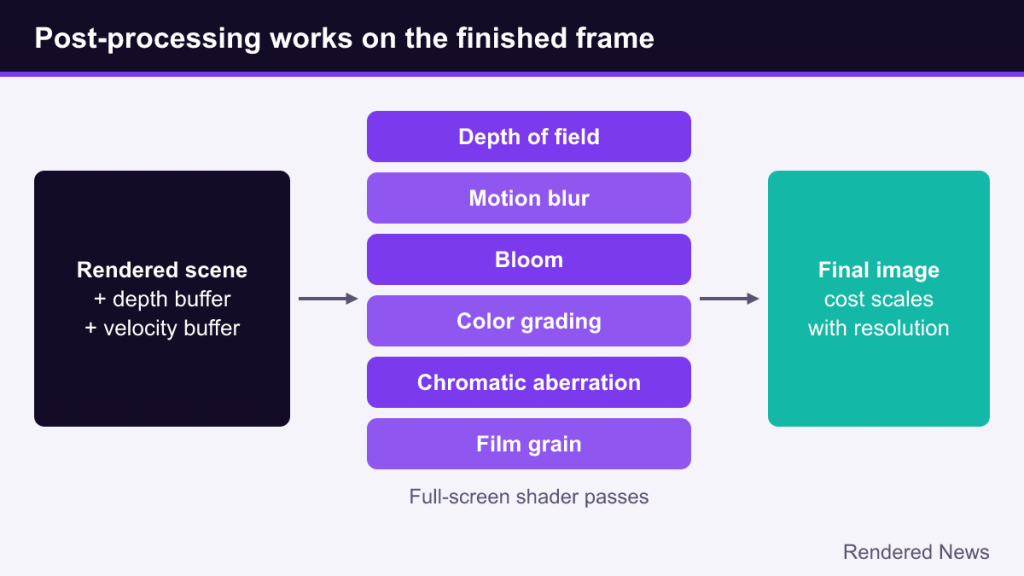
Because they work on the finished image, post effects have a predictable cost that scales mostly with resolution rather than scene complexity. Most are cheap. A few, like high-quality depth of field, can be meaningfully expensive. Engine documentation groups them in similar ways: Unreal Engine’s post-process documentation, for example, lists lens effects such as bloom, depth of field, chromatic aberration, lens flares and vignette alongside color grading, tonemapping, motion blur and film grain.
Many of these effects imitate the behavior of real camera lenses and film. That is the core of the debate. A camera’s imperfections look natural on film because we are used to watching movies. In a game, where you are the camera, the same imperfections can feel like smudges on your own eyes.
Motion Blur: Camera vs Per-Object
Real cameras blur moving things because the shutter stays open for a fraction of a second, during which the subject moves. Games render instantaneous frames with no such smear, so fast motion at a modest frame rate can look choppy or “strobed.” Motion blur adds the smear back.
There are two main kinds:
- Camera motion blur blurs the whole image based only on how the camera moved. Turning quickly smears the entire view. It is cheap and simple, but it blurs everything, including static scenery you are trying to track. Unity’s Universal Render Pipeline offers this as a “Camera Only” mode, which its documentation describes as faster because it does not rely on motion vectors.
- Per-object motion blur uses a velocity buffer so each object blurs according to its own movement. A spinning wheel or a swinging sword can blur while the background stays sharp. Unreal Engine’s motion blur uses a full-screen velocity map, and Unity’s “Camera and Objects” mode adds object motion vectors on top of camera motion.
Per-object blur is generally considered the more tasteful version, especially at low strength, because it mimics how we perceive fast-moving things without smearing the whole world when you turn the camera.
Why do so many players disable it? Camera blur in particular reduces clarity exactly when you need it, during fast turns. It can also cause discomfort for some people. At high frame rates, the natural motion persistence of the display already provides some smoothness, so the benefit shrinks. On the other hand, at 30 frames per second, well-implemented blur can make motion look smoother, which is why it is common in console games targeting that frame rate.
Depth of Field and Bokeh
Real lenses only focus sharply at one distance. Objects nearer or farther fall out of focus, and bright out-of-focus points spread into soft shapes called bokeh. Depth of field imitates that.
Games implement it by reading the depth buffer, deciding how far each pixel is from the focus distance, and blurring it accordingly. Simple methods use a basic blur, which looks smeary. Higher-quality methods scatter or gather samples to simulate the lens’s circle of confusion, producing proper bokeh shapes, which is why a “high” depth of field setting can cost noticeably more than “low.”
Depth of field is valuable in cutscenes, photo modes and aiming down sights, where it directs attention and mimics a camera or the eye’s focus. It is least liked during free gameplay, where the game decides what you should be looking at, and distant scenery you want to see may be blurred. Edge artifacts, such as halos around a sharp character against a blurred background, also show up in weaker implementations.
Lens Effects: Chromatic Aberration, Vignette and Lens Flares
Chromatic aberration
Real lenses bend different wavelengths of light by slightly different amounts, so red, green and blue do not land in exactly the same place, especially near the edges of the frame. That produces colored fringes on high-contrast edges. Games imitate it by offsetting the color channels toward the screen edges. It can suggest a cheap security camera, a helmet visor or a dazed character. As a constant effect, many players find it makes the image look blurry and wrong, which is why it is one of the most frequently disabled options.

Vignette
Vignetting is the darkening of an image toward its corners, a natural trait of many lenses. In games it frames the image and pulls the eye toward the center. Subtle vignettes are often barely noticed; heavy ones can make corners feel murky. Some games tie vignette to gameplay, such as darkening the edges when the player is injured.
Lens flares and dirt masks
Lens flares are the streaks and rings that appear when a bright light shines toward a camera, caused by internal reflections in real lens elements. Games add them around the sun or bright lamps, sometimes along with a lens dirt texture that lights up when bright sources are near. They can be dramatic but also unrealistic for a first-person view, since human eyes do not produce these artifacts the same way.
Bloom, Film Grain and Color Grading
Bloom
Bloom makes very bright areas glow, bleeding light into surrounding pixels, the way bright lights scatter inside lenses and our eyes. It is closely tied to high dynamic range rendering: the renderer finds pixels above a brightness threshold, blurs them at several scales and adds the result back. Moderate bloom makes lights and the sky feel bright; overdone bloom washes the image out. Our HDR explainer covers how brightness and tone mapping relate to it.
Film grain
Film grain overlays fine animated noise that imitates photographic film. Developers use it for atmosphere, especially in horror and gritty settings, and it can also hide color banding and make upscaled or soft images look more detailed. Players who dislike it point out that it adds noise to an image that renderers work hard to keep clean, and it can interfere with upscalers and video compression when streaming.
Color grading and tone mapping
Color grading adjusts the overall color, contrast and mood of the image, the same way a film colorist does. Tone mapping converts the renderer’s high dynamic range lighting into the range a display can show. These two are rarely exposed as toggles because they define the game’s intended look, but brightness, contrast and gamma sliders work in the same stage.
Sharpening
Sharpening increases contrast along edges to make the image look crisper. It has become much more common because temporal anti-aliasing and upscalers tend to soften the image; our anti-aliasing explainer covers why. Many games ship a sharpening slider alongside their upscaler setting, and techniques such as AMD’s FidelityFX Contrast Adaptive Sharpening are designed to sharpen more where detail is low and less where it is already high.
A little sharpening can restore lost texture detail. Too much creates bright halos along edges, exaggerates noise and makes foliage look crunchy. Because sharpening adds contrast, it also stacks badly with film grain, magnifying the noise.
Why Developers Use These Effects
- Art direction: a cinematic look, an analog horror feel or a stylized retro vibe can depend on grain, aberration and heavy grading.
- Hiding limitations: motion blur smooths low frame rates; grain hides banding; depth of field hides low-detail distant scenery in cutscenes.
- Guiding attention: vignettes and depth of field steer the eye toward what matters.
- Feedback: blur, desaturation and vignette pulses communicate damage, speed or disorientation.
A Quick Guide to Choosing
| Effect | Typical cost | Common reason to disable |
|---|---|---|
| Motion blur | Low to moderate | Smears the view during fast turns |
| Depth of field | Low to high, depending on quality | Blurs scenery you want to see |
| Chromatic aberration | Very low | Colored fringes make edges look soft |
| Film grain | Very low | Adds noise; clashes with sharpening |
| Vignette | Very low | Darkens corners |
| Bloom | Low | Washed-out bright areas when overdone |
| Lens flares | Low | Distracting streaks near light sources |
There is no right answer with these settings, only preference. A reasonable approach is to try the game with the developer’s defaults first, since the art team tuned the image around them, then turn off whichever effects bother you. Turning them off rarely gains much performance, with depth of field and motion blur as partial exceptions, so the choice is mostly about how you like the image to look. For the rest of the menu, see our guide to common graphics settings.