Frame Rate vs Frame Time: Understanding Stutter and Frame Pacing
Why average FPS hides stutter, how frame time in milliseconds works, what 1% lows mean, and how to read a frame-time graph in a performance overlay.

Two games can both report 60 frames per second and feel completely different. One glides; the other hitches every few seconds, as if the camera snags on something invisible. The FPS counter cannot explain the difference because it is an average. To see what is actually happening, you need to look at individual frames and how long each one took. That measurement is frame time, and it is the most useful number for understanding smoothness.
Frame Rate Is an Average, Frame Time Is the Detail
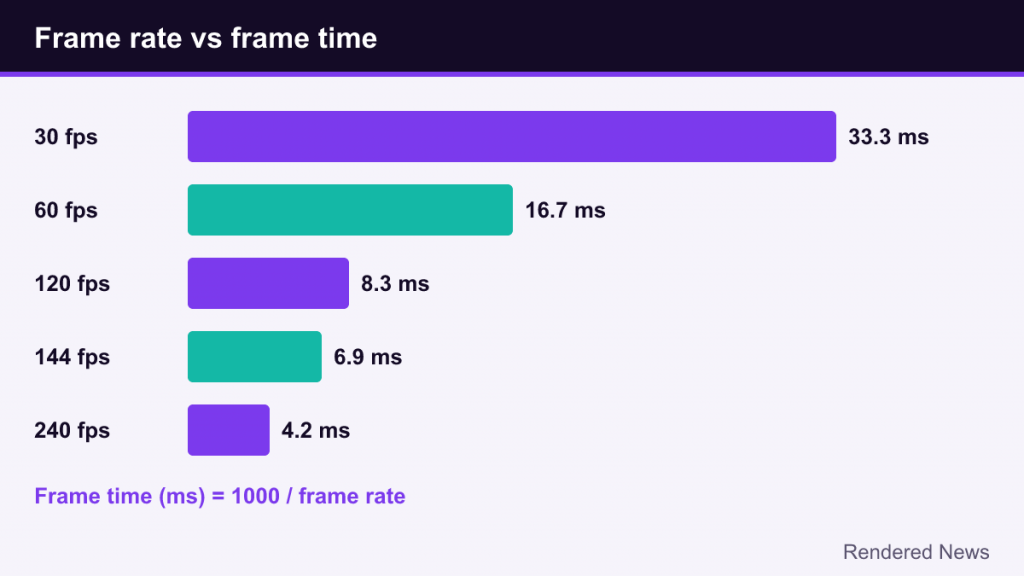
Frame rate counts how many frames are produced in a second. Frame time measures how long a single frame took, usually in milliseconds. They are two views of the same data, linked by a simple conversion: frame time in milliseconds equals 1000 divided by the frame rate.
| Frame rate | Frame time per frame |
|---|---|
| 30 fps | 33.3 ms |
| 60 fps | 16.7 ms |
| 120 fps | 8.3 ms |
| 144 fps | 6.9 ms |
| 240 fps | 4.2 ms |
Those conversions are pure arithmetic, not measurements, but they reveal something important. The jump from 30 to 60 fps saves 16.7 milliseconds per frame. The jump from 120 to 240 fps saves only about 4.2 milliseconds. Frame time is linear in the work being done, while frame rate is not, which is why developers think in milliseconds. A feature that costs 2 ms is a 2 ms cost whether the game runs at 60 or 120 fps, but its effect on the FPS number differs wildly.
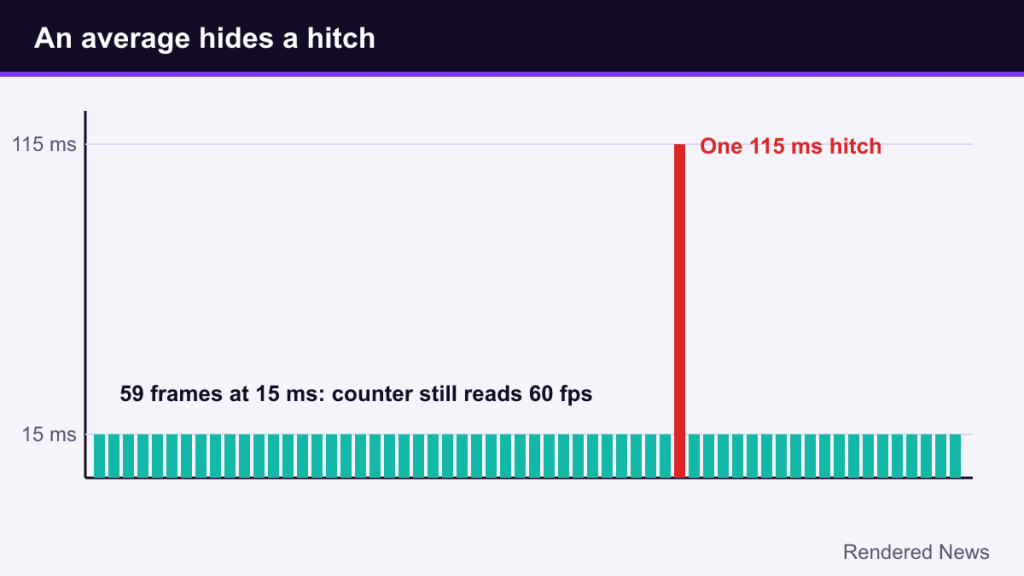
The bigger issue is that an average hides variation. Imagine a second in which 59 frames take 15 ms each and one frame takes about 115 ms. That second contains 60 frames, so the counter reads 60 fps. But that single long frame is a visible freeze, roughly seven times longer than its neighbors. You feel it, and the average never shows it.
What Stutter Actually Is
Stutter is any frame, or short run of frames, that takes noticeably longer than the frames around it. Your eyes and hands are very sensitive to sudden changes in timing. A steady 40 fps can feel acceptable; a game that averages 70 fps but regularly spikes to 50 or 100 ms frames feels broken.
Common causes fall into a few families:
- Shader compilation: the game compiles a GPU program the first time an effect appears, blocking the frame while it does.
- Asset streaming: loading textures, meshes or world sections from storage while you move, sometimes called traversal stutter.
- CPU spikes: sudden bursts of game logic, physics, AI or garbage collection in managed languages.
- Memory pressure: running out of video memory or system memory forces data to be shuffled around.
- Synchronization problems: frames that are produced at an even rate but presented unevenly, which brings us to pacing.
Stutter is also relative. A 50 ms frame in a game running at a steady 30 fps (33.3 ms) is a mild bump. The same 50 ms frame in a game running at 144 fps (6.9 ms) is more than seven times the normal frame duration, and the sudden stop is jarring. That is why players with high-refresh displays often notice hitches that others shrug off: the smoother the baseline, the more any interruption stands out. It also explains why lowering settings does not always cure stutter. If the hitch comes from compilation or streaming, it is a fixed cost that settings barely touch, while the faster baseline only makes it more noticeable.
Frame Pacing: Even Isn’t the Same as Fast
Frame pacing describes how evenly frames are delivered to the display. A game can have no huge spikes and still pace poorly. A classic example is a game at roughly 30 fps on a 60 Hz display. Ideally each frame stays on screen for exactly two refresh cycles, 33.3 ms each. If the game instead alternates between showing a frame for one refresh and the next for three, the average is still 30 fps, but motion judders because objects move in uneven steps.
On a fixed-refresh display with V-Sync, frames can only change on refresh boundaries, so any frame that misses its deadline waits for the next one, and pacing becomes a pattern of 16.7 ms and 33.3 ms steps. Variable refresh rate displays soften this by refreshing when the frame is ready. Our V-Sync and adaptive sync explainer covers how those systems fit together.
Good pacing is also why frame rate caps are popular. A cap set slightly below what the system can sustain gives every frame some headroom, so frame times become flat and predictable instead of jumping around as the scene changes.
1% Lows and Percentiles, Conceptually
Because averages hide spikes, reviewers and tools report percentile figures. The idea is simple: sort all frame times in a capture from fastest to slowest and look at the slow end.
- 99th percentile frame time: the frame time that 99% of frames beat. Only 1% of frames were slower than this.
- “1% low” FPS: usually that 99th percentile frame time converted back into a frame rate, although some tools compute it as the average of the slowest 1% of frames. The two methods give different numbers, so only compare values from the same tool.
- 0.1% low: the same idea at an even rarer threshold, which catches the worst individual hitches.
A useful mental model: the average tells you how fast the game usually runs, and the lows tell you how bad the bad moments are. When the 1% low is close to the average, the experience is consistent. When it sits far below, players will notice hitching even if the average looks great.
Percentiles still have limits. A single huge spike in a long capture may vanish inside the 1% figure, and two captures can share the same lows while one has evenly spread mild hiccups and the other has a single brutal freeze. That is why the graph matters more than any single number.
Reading a Frame-Time Graph
Most performance overlays can draw frame time as a line graph scrolling across the screen, with time on the horizontal axis and milliseconds per frame on the vertical axis. Here is how to read it:
- Find the baseline. The line should mostly sit at a level that matches your frame rate, for example around 16.7 ms for 60 fps.
- Look at thickness. A thin, flat line means consistent frames. A thick, fuzzy band means frame times vary a lot from frame to frame, which can feel like micro-stutter even without large spikes.
- Look for spikes. Tall single spikes are hitches. Note when they happen: when entering a new area suggests streaming; the first time an effect appears suggests shader compilation; at regular intervals suggests a periodic background task.
- Look for patterns. A repeating sawtooth or alternating high-low pattern suggests a pacing or synchronization issue rather than a lack of raw performance.
- Check whether it repeats. Spikes that disappear on a second pass through the same area often point to one-time costs like compilation or caching.
Remember that lower is better on a frame-time graph, which is the reverse of an FPS graph. Upward spikes are bad frames.
Tools That Measure Frame Time
The most widely used open measurement foundation on Windows is PresentMon, an MIT-licensed set of tools hosted under Intel’s GameTechDev organization on GitHub. It works by reading Event Tracing for Windows events, which lets it see when applications present frames, without hooking into the game. It supports DirectX, OpenGL and Vulkan. The project includes a console tool that writes per-frame data to CSV files and a capture application that can show a live overlay.
PresentMon’s metrics go beyond a single frame time number. Its documentation lists measurements such as CPU frame time, GPU busy time, display latency and input latency. That split is valuable: if CPU frame time is high while the GPU sits partly idle, the game is CPU-limited at that moment; if GPU busy time fills the whole frame, the GPU is the limit.
Many other overlays, including vendor overlays from GPU makers and community tools, report similar data, and several build on PresentMon’s approach. Whatever you use, the principles in this article apply.
Frame Time, Latency and Frame Generation
Frame time and input latency are related but separate. Latency is the delay from your action to its result on screen, and it can grow even when frame times are steady, for example when the CPU queues frames ahead of a busy GPU. We cover that in our input latency guide.
Frame generation complicates the picture further. Generated frames lower the displayed frame time and can make motion look smoother, but they do not reduce the time it takes the game to simulate and render real frames. If the underlying rendered frames stutter, the generated ones sit between stuttering anchors, and hitches often remain visible. Some overlays now report both the displayed rate and the rendered rate. Our frame generation explainer goes deeper on why.
Common Mistakes When Judging Smoothness
- Trusting the average alone. A high average with poor lows will feel worse than a lower, steady frame rate.
- Testing only once. First runs include one-time costs. Test a section twice to separate compile or cache stutter from persistent problems.
- Comparing numbers across tools. Different tools define “1% low” differently and sample at different points in the pipeline.
- Ignoring the overlay’s own cost. Heavy monitoring with many sensors can add small overhead. Keep only the metrics you need.
- Chasing uncapped frame rates. An uncapped game that swings between very high and moderate frame rates can feel less smooth than a capped one with flat frame times.
If you take one thing away, let it be this: smoothness is about consistency, and consistency lives in frame times. The FPS counter is the headline. The frame-time graph is the story.